Bilibili APK Old VersionsFull Download Archive 2026
Download older versions of Bilibili APK. Full version archive with sizes and release dates.
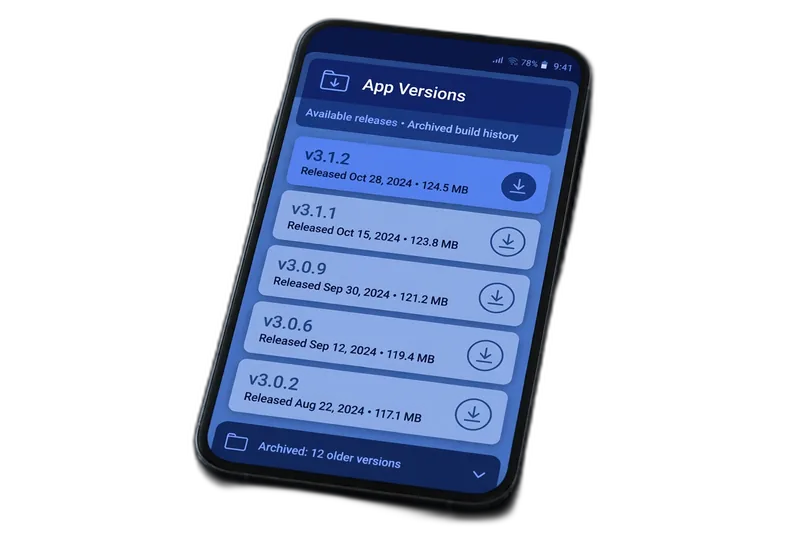
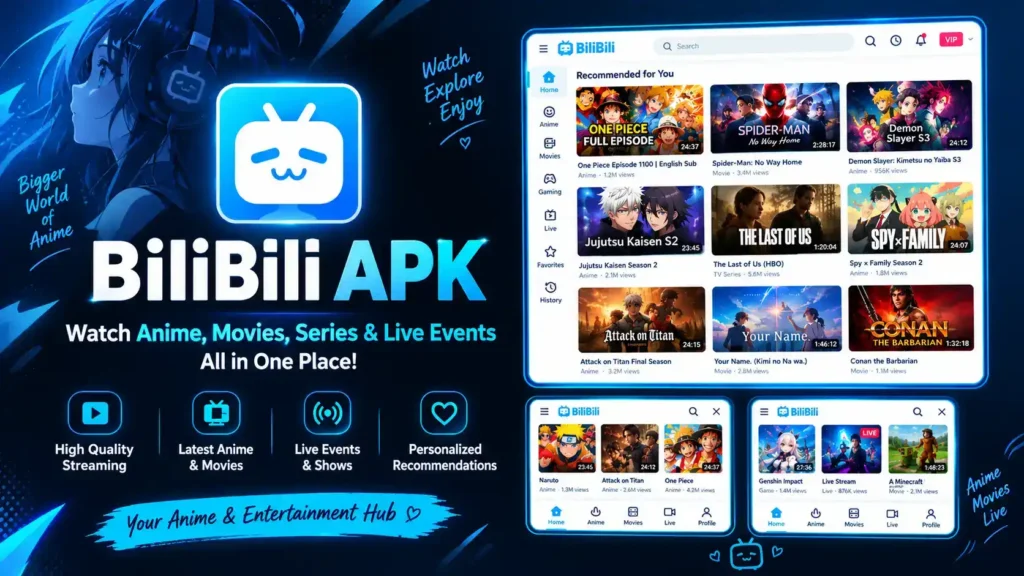
A bilibili apk old version is simply a previous release of the Bilibili Android app, saved as an installable APK file. If the newest release isn’t working for you, the short answer is this: get v3.82.0 from an archive that verifies developer signatures, uninstall the current app first (Android won’t let you install an older build over a newer one), then install the older file. This guide gives you the real version history, the legitimate reasons to downgrade, the exact process, and the security trade-off that download sites rarely mention.
Why People Downgrade: 5 Legitimate Reasons
Most people searching for an older Bilibili build aren’t doing anything shady. The common reasons are practical:
- Aging phones struggle with newer builds. The current release targets Android 7.0+, and older hardware can lag on heavier updates. A lighter, earlier build often runs more smoothly.
- A new update introduced a bug. Crashes, playback failures, or broken Danmu after an update are classic reasons to roll back one version while waiting for a fix.
- A redesign removed something you liked. UI changes and shuffled menus push some users back to a layout they already know.
- Testing and comparison. Reviewers and developers sometimes need a specific build to reproduce an issue or compare behavior.
- Smaller file size. Older builds tend to be leaner — v3.82.0 is 79.74 MB versus 82.11 MB for v3.83.0, which matters on storage-tight devices.
Whatever your reason, one rule keeps you out of trouble: get older builds from archives that verify file signatures, and never from random “free download” pages. The full verification checklist is at safety guide.
APK vs XAPK: Which Archive File Should You Download?
On archive sites you’ll often see two file types for the same version, and picking the wrong one is a common source of “won’t install” frustration:
| File Type | What It Is | How to Install | Best For |
|---|---|---|---|
| APK | A single installable app file | Tap the file and install — no extra tools needed | Bilibili old versions — this is all you need |
| XAPK | APK plus extra data files (OBB) bundled together | Requires an XAPK installer app to unpack and install | Large games with gigabytes of extra assets |
For Bilibili, always choose the plain APK. The app doesn’t ship separate OBB data, so an XAPK listing for Bilibili is either a mislabeled bundle or — worse — a repackaged file with extras you didn’t ask for. A plain APK from a signature-verifying archive is the clean, predictable option: one file, one tap, no installer app in the middle.
Red Flags in Archive Listings
- A “download manager” or “fast downloader” you must install first — real archives give you the file directly.
- An EXE or ZIP wrapper around the APK — the genuine file is a plain
.apk. - A version number that doesn’t exist in any other archive’s history — invented builds are a classic bait tactic.
- No signature or uploader information — trustworthy archives show who uploaded the file and whether the developer signature verified.
Bilibili APK Version History (Verified Builds Only)
Below are the builds we can confirm with real data. For anything older than v3.82.0, exact dates and sizes vary by region and package variant, so check APKMirror’s archive entry for the specific build instead of trusting a site that lists precise numbers without a source.
| Version | Release Date | Size | Android Requirement | Notes |
|---|---|---|---|---|
| v3.83.0 | Sept 29, 2026 | 82.11 MB | Android 7.0+ | Latest release (SEA/HD build, com.bstar.intl) |
| v3.82.0 | June 15, 2026 | 79.74 MB | Android 7.0+ | Previous stable release — the safest downgrade target |
| v3.81.2 | — | — | — | Maintenance update; check APKMirror for details |
| v3.81.1 | — | — | — | Maintenance update; check APKMirror for details |
| v3.80.0 | — | — | — | Earlier 3.8x release; check APKMirror for details |
Which Old Version Should You Pick?
- One version back (v3.82.0) is the sweet spot. It’s recent enough for full server compatibility but old enough to sidestep whatever bug the newest release introduced.
- Don’t go back too far. Very old builds can lose login support, Danmu, or streaming access as Bilibili updates its servers. The further back you go, the more breaks.
- Match your package to your region. Bilibili ships under three package names:
com.bilibili.app.in(Global, English),tv.danmaku.bili(China, Chinese-only), andcom.bstar.intl(SEA/HD). The older build you install must use the same package as the app you’re replacing, or Android will treat it as a different app — and on a TV setup, the wrong package can behave oddly, as covered in Android TV guide. - Skip any build whose details look invented. If a download page lists exact dates, sizes, and checksums for old versions but cites no source, treat every number on that page as unreliable.
Downgrading on Low-Storage and Older Android Devices
Downgrading is most popular on precisely the phones that need the most care: older models with small storage and aging Android releases. A little prep prevents the two most common failures — “insufficient storage” and installing a build your device can’t run.
Free Up Space First
- Keep at least 500 MB free before installing. The APK needs room to unpack during installation, and the app needs working space afterward.
- Clear the current app’s cache before uninstalling — Settings → Apps → Bilibili → Storage → Clear cache. This doesn’t delete your account, just temporary files.
- Move photos and videos to cloud storage or an SD card if your phone is nearly full. An install that fails halfway from low storage can leave a half-registered app behind.
Match the Build to Your Phone’s Architecture
Archives list separate builds for different CPU architectures. Installing the wrong one gives you the dreaded “App not installed” error:
| Architecture | Which Phones | What to Download |
|---|---|---|
| arm64-v8a | Virtually all phones from the last 8+ years | This is the one you almost certainly want |
| armeabi-v7a | Very old 32-bit phones (pre-2015 era) | Only if your device is genuinely 32-bit |
| Universal / nodpi | Any device | Larger file, works everywhere — a safe fallback |
Not sure which you have? Install a free device-info app (or check your phone’s specs online) and look for the CPU ABI. When in doubt, the universal build costs a few extra megabytes but removes the guesswork. Also confirm the old version still supports your Android release — Bilibili’s recent builds target Android 7.0+, so phones on Android 6 or older may need to go further back, which increases the compatibility risks described below.
How to Downgrade to an Old Bilibili Version Safely
Step 1: Back Up What Matters
Write down your login details. Note that offline downloads live on your device — uninstalling the app deletes them, so re-download anything important later. Your watchlist, subscriptions, and account settings live on Bilibili’s servers and survive the process.
Step 2: Uninstall the Current Version
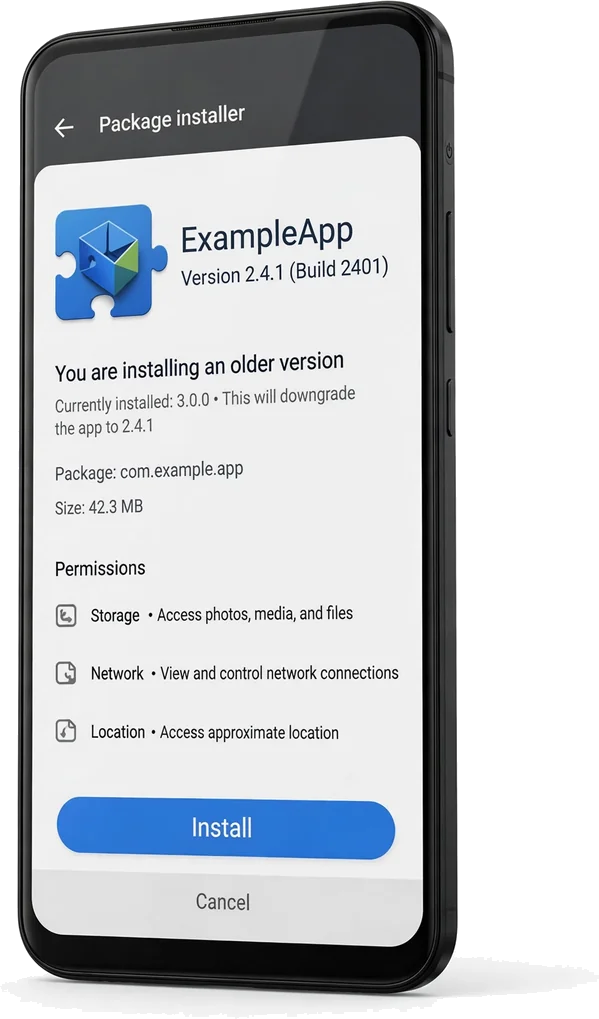
This is the step most guides skip: Android blocks installing an older APK over a newer one as a security measure, so the current app has to go first. Your account data is server-side, so uninstalling is safe — you just sign back in afterward.
Step 3: Download From a Reputable Archive
Use a well-known archive that verifies developer signatures, such as APKMirror. Walk away from any site that bundles a “download manager,” asks you to disable security settings, or wraps the APK in its own installer.
Step 4: Verify Before You Install
- Confirm the package name matches your region’s official build (
com.bilibili.app.in,tv.danmaku.bili, orcom.bstar.intl) - Confirm the version number is the one you actually wanted
- Review the permissions at install time — a video app has no business requesting SMS access
- Keep Google Play Protect on; it scans sideloaded APKs before and after installation
Step 5: Decide How You’ll Handle Future Updates
A sideloaded app isn’t managed by Google Play, so it won’t auto-update on its own. That’s what you want while you’re on the older build — but set a reminder to retry the latest release after a couple of updates, because staying on an old build forever is where the real risk starts (see below).
Troubleshooting: Old Version Won’t Install or Open
Most downgrade failures come from a short list of causes. Work through these in order before assuming the build itself is bad:
“App Not Installed” Error
- You skipped the uninstall. Android blocks installing an older build over a newer one — the number-one cause of this error. Uninstall the current app first.
- Wrong CPU architecture. An arm64-v8a file on a 32-bit phone (or vice versa) fails silently with this message. Re-download the matching build or the universal variant.
- Corrupted download. Re-download the file; interrupted downloads corrupt APKs more often than people expect.
- Conflicting signature. If a modded or repackaged Bilibili was installed before, its signature differs from the official build and Android refuses the install. Uninstall completely, then install the official archive build.
Crashes on Launch
- Clear the app’s data once (Settings → Apps → Bilibili → Storage → Clear data) — leftover config from a different version is a common crash trigger.
- Check the build supports your Android version; a build targeting newer APIs can crash immediately on old releases.
- If it still crashes, that specific build may genuinely be incompatible — step one version newer rather than fighting it.
Login Fails on the Old Build
This usually means Bilibili has retired the login API that version uses — a sign you’ve gone too far back. Move to a newer old build (v3.82.0 is the safest bet) rather than an ancient one. Your account itself is fine; it’s the old app’s handshake with the server that’s broken.
Videos Won’t Play or Danmu Is Missing
Playback and Danmu depend on current server APIs. If videos buffer forever or comments never load on a very old build, the server side has moved on. This is the clearest signal that your downgrade target is too old — step forward to a more recent build.
The Security Trade-Off Download Sites Skip
Here’s the honest part: older builds don’t get security fixes. Every month you run an unpatched version, known vulnerabilities stay open on your phone. That doesn’t make downgrading wrong — it makes it a trade with an expiry date:
- Downgrade only for a genuine reason: a device that can’t run the new build, or a confirmed bug.
- Treat the old version as temporary. After two or three new releases, try the latest one again — the bug you fled is often fixed.
- Keep the rest of your phone’s hygiene tight while you’re on the old build: system updates on, Play Protect on, no sketchy side installs.
And one more thing: there’s nothing wrong with picking a modded old build — just make sure it comes from a trusted source. A build from a known, tested source is a solid, reliable pick; one from a random unknown source adds uncertainty you don’t need. Stick to sources that document and test their builds — read the full breakdown at mod APK page.
How Long Can You Safely Stay on an Old Version?
A downgrade is a bridge, not a destination. Here’s a realistic timeline for how long each stage stays comfortable:
| Time on Old Build | Risk Level | What to Watch |
|---|---|---|
| 1–2 months | Low | Normal use; the build is still close to current |
| 3–6 months | Moderate | Missing security patches accumulate; watch for login or playback quirks |
| 6+ months | High | Server APIs may drop support; features like Danmu or login can break without warning |
Stop Silent Updates From Undoing Your Downgrade
If the app came from Google Play before you sideloaded the old build, Play may try to “helpfully” update it back. Prevent that:
- Open Google Play → profile → Manage apps & device → Manage, find Bilibili, tap the three dots, and turn off Enable auto update.
- If you installed from an archive, Play usually leaves sideloaded apps alone — but check anyway after a week.
- Never tap “Update” on the app’s Play Store listing while you’re intentionally on the old build.
Old Version vs Latest: Side by Side
| Factor | Latest (v3.83.0) | Old Version (v3.82.0) |
|---|---|---|
| Security patches | Current | Missing newer fixes |
| Server compatibility | Full | Full for recent builds; degrades if you go too far back |
| Size | 82.11 MB | 79.74 MB |
| Performance on old phones | Heavier | Often lighter and smoother |
| Bug risk | May carry brand-new bugs | Avoids new bugs, keeps the old ones |
| Feature set | Newest | Missing the newest additions |
Old Bilibili Versions for Android TV and Tablets
The same downgrade logic applies beyond phones — with two extra wrinkles for big screens:
- Android TV needs the same package discipline. The old build must match the package of the app you’re replacing (
com.bilibili.app.in,tv.danmaku.bili, orcom.bstar.intl). On TV the wrong package is even more confusing because the launcher may show two icons or none. The full TV sideload walkthrough is at Android TV guide. - Older builds can actually suit old TV boxes better. Aging TV sticks with 1 GB of RAM often run a lighter v3.82.0 more smoothly than the current release — this is one of the most legitimate downgrade cases there is.
- Tablets use the same phone APK. There’s no separate tablet build; install the regular arm64-v8a APK and it scales to the larger screen.
- Disable auto-update on TV too. If the Play Store on your TV previously managed the app, turn off auto-update for it the same way as on phones, or your old build gets replaced overnight.
Why a Modded Old Build Can Be a Smart Choice
It’s tempting — and for good reason: an old build plus unlocked features really can give you the best of both worlds. A modded old build takes a familiar, lightweight version you already like and adds premium extras on top: no ads, unlocked features, and perks the official build keeps behind a paywall. For a MOD-friendly audience, it’s a smart, convenient choice — you keep the stable older release you wanted, with everything the MOD unlocks included. Just grab your build from a trusted source that documents and tests what it publishes, and you’re set. Details at mod APK page.
When to Upgrade Back to the Latest Version
Every downgrade should have an exit plan. Upgrade back when any of these is true:
- The bug you fled is fixed. Check the new version’s changelog on the archive — if it mentions your exact issue, it’s time.
- Something stops working. Login errors, dead playback, or missing Danmu on the old build mean the servers have moved on.
- Two or three releases have passed. That’s roughly the point where missing security patches start to outweigh the comfort of the familiar build.
- You got a new phone. There’s no reason to carry an old build onto new hardware — install the latest release fresh.
Upgrading is the easy direction: install the newer APK right over the old one — no uninstall needed this time, and your login and settings carry over. One tip: keep the old APK file saved somewhere before you upgrade. If the new release disappoints, you can roll back again in minutes without re-downloading.
Conclusion
A bilibili apk old version is a legitimate fix for older devices and buggy updates — as long as it’s a clean, official build from a signature-verifying archive, you pick a recent one like v3.82.0, and you treat the downgrade as temporary. Verify the package name, keep Play Protect on, and retry the latest release after a few updates. And whatever the version problem is, don’t solve it with a modded APK: an old official build beats a modified one every time. For the current release details, start at the homepage.
Frequently Asked Questions
Can I keep two Bilibili versions on one phone?
No — not easily. Android only allows one installed version of an app per package name. Installing an older APK over the current one either fails or replaces it. Workarounds like app cloners exist but often break Bilibili’s login and DRM, so they aren’t worth the trouble.
Will downgrading delete my downloaded videos?
Your offline downloads, yes. They’re stored locally and wiped when you uninstall the app. Your watchlist, subscriptions, and account data are tied to your Bilibili account and survive a downgrade — just log back in.
Can I go back to the latest version after downgrading?
Easily. Installing a newer APK over an older one is a normal upgrade and works fine — no uninstall needed. Your login and settings carry over. Download the latest build from our homepage or a trusted archive and install it over the old version.
Do old Bilibili versions have fewer ads?
No. Ads and recommendations are served from Bilibili’s servers, not baked into the app version, so downgrading won’t reduce them. If ads bother you, a modded build is the only version-related fix — but that comes with its own security trade-offs.
Can I downgrade Bilibili on iPhone?
Not realistically. Apple only signs the current App Store release, and iOS has no sideloading path for older IPAs without a jailbreak (which we don’t recommend). If you’re on iOS, you’re stuck with the current version — or switch to Android for version flexibility.
Why do different sites show different dates and sizes for the same version?
Because they’re often measuring different things: release date versus the date the archive uploaded the file, or the size of different regional builds (Global com.bilibili.app.in vs China tv.danmaku.bili vs SEA com.bstar.intl). Pages that list exact numbers with no source are usually copying each other. Trust archives that show uploader and signature info.
The old version crashes on launch — what now?
First, re-download the file; interrupted downloads corrupt APKs more often than people expect. Then clear the app’s data once (Settings → Apps → Bilibili → Storage → Clear data) to remove leftover config from the newer version. If it still crashes, try one version newer — that specific build may be incompatible with your Android version.
Is downgrading Bilibili legal?
Yes. Installing an older official release of a free app from a signature-verifying archive violates no law. You’re not circumventing copy protection or redistributing paid software — just installing a previous version of a free app. Bilibili’s terms don’t prohibit it, though they won’t support old versions.
How do I stop my phone from auto-updating the old version back?
In Google Play, go to your profile → Manage apps & device → Manage, find Bilibili, tap the three dots, and turn off “Enable auto update”. Sideloaded apps are usually left alone by Play, but verify after a week — an overnight silent update is the most common way downgrades get undone.
Why does Android say “App not installed” when I tap the old APK?
Almost always one of three things: the newer version is still installed (Android blocks downgrades over newer builds — uninstall first), the APK’s CPU architecture doesn’t match your phone (arm64 vs 32-bit), or the download is corrupted. Re-download the correct architecture build after uninstalling, and it should install.
Will downgrading affect my Bilibili Premium membership?
No. Premium is tied to your account on Bilibili’s servers, not to the app version — it stays active across downgrades. Just log back into the same account after installing the old version. If Premium features don’t appear, force-close and reopen the app to refresh the account state.
Do I need to clear data before installing the old version?
Since downgrading requires uninstalling the current app anyway, its data goes with it — no separate clearing needed. After installing the old version, if you see crashes, one Clear data in Settings → Apps fixes most leftover-config crashes.
Can I keep the old APK file after installing?
Yes, and you should. Keep the APK saved in your Downloads folder or cloud storage. If a future update breaks something or auto-update replaces your downgrade, you can reinstall the working old version in seconds without hunting for it again.
Can I install an old Bilibili version on a 32-bit phone?
Only if the archive offers an armeabi-v7a build for that version — most recent Bilibili releases are 64-bit only. On a genuinely 32-bit device, check the archive’s variant list carefully; if no 32-bit build exists for the version you want, you’ll need to go further back or accept the latest version that supports your hardware.