Bilibili for Windows 11 How to Watch on Your PC
Bilibili for Windows 11, explained simply: run the full Android app inside an emulator, or watch straight in your browser with no install at all.
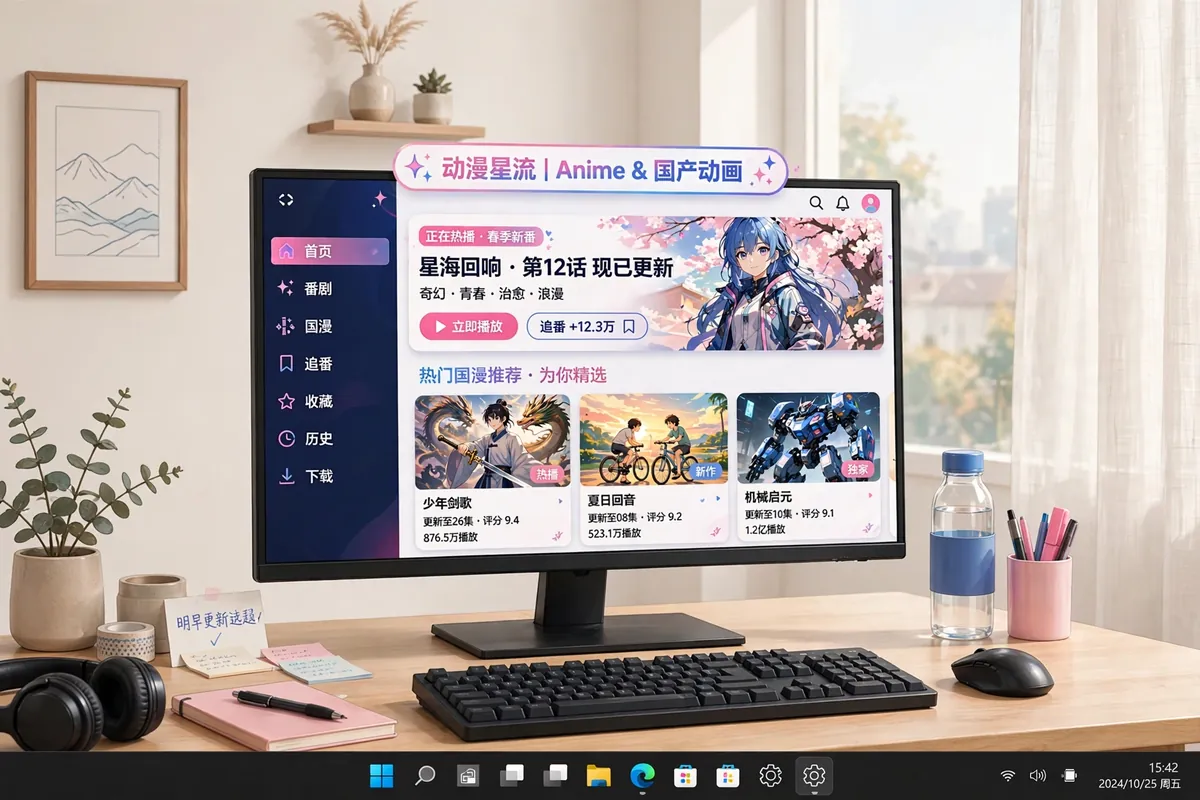
There is one honest thing to say first: Bilibili has no official Windows 11 app. The app is built for Android and iOS, and the desktop experience lives in the browser. That does not mean you are stuck on a small screen — on Windows 11 you have two solid routes: run the Android app inside an emulator, or watch directly in your browser. This Bilibili for Windows 11 guide covers both, so you can pick the one that fits how you actually watch.
If you want the full PC picture first — Mac included — start with our Bilibili for PC guide.
Bilibili on Windows 11
| Official Windows app | None — emulator or browser |
| Operating system | Windows 11 |
| Emulator RAM | 8 GB minimum, 16 GB comfortable |
| Browser option | Edge / Chrome, no install |
| Account sync | Yes — same Bilibili account |
| Price | Free |
What You Get on the Big Screen
Bigger Picture
Donghua, anime and live streams on a monitor instead of a phone — full-screen playback with details you can actually see.
Full Danmaku
In the emulator app you get the real danmaku comment layer, exactly as on your phone. The browser shows danmaku on supported videos too.
Downloads (Emulator)
The Android app inside an emulator keeps its built-in episode downloads, so offline watching works on your PC as well.
Notifications & Follows
Your follows, new-episode alerts and watch history sync with the same account you use on your phone.
Method 1: Android Emulator (the full app experience)
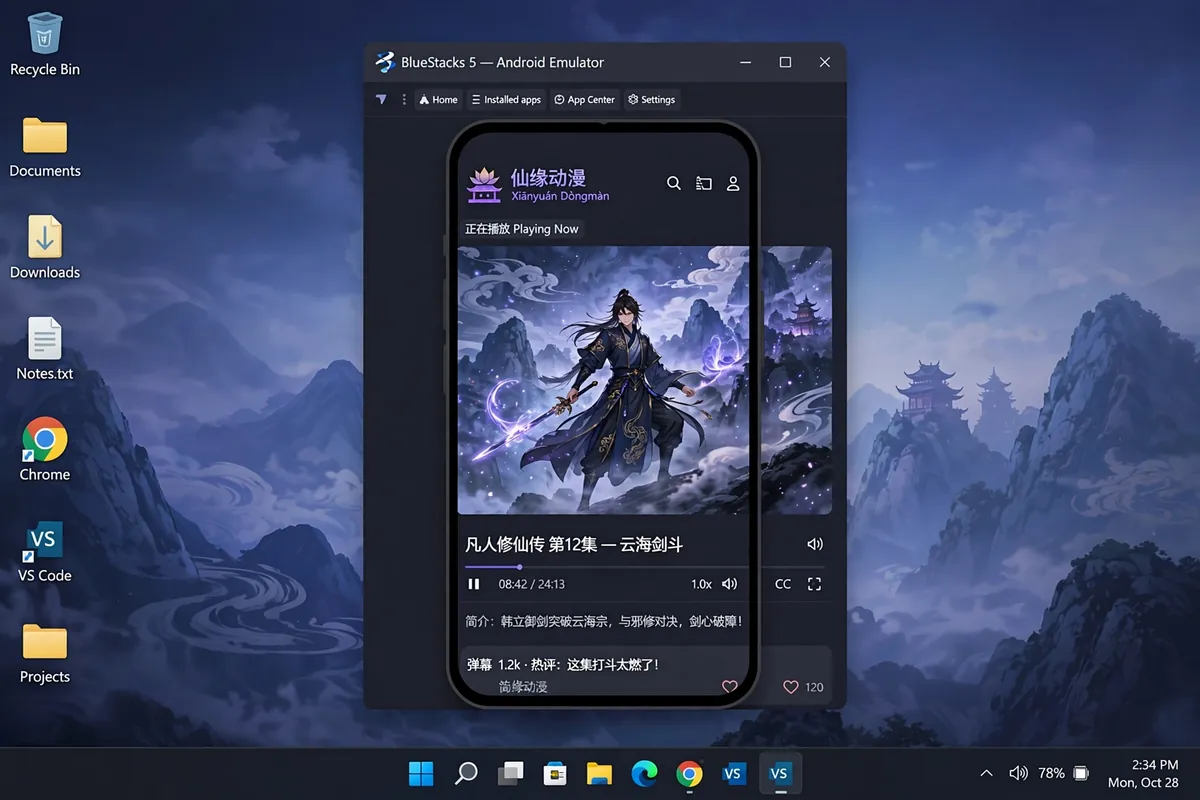
An emulator runs Android inside a window on Windows 11, so you get the real Bilibili app: your account, follows, danmaku comments, downloads and notifications, exactly as on a phone.
- Pick an emulator. BlueStacks and LDPlayer are the two most-used options on Windows 11, and both run Bilibili well on mid-range hardware.
- Install it from its official site only — never from a repackaged download link. Give it a few minutes on first launch; it sets up a virtual Android device.
- Sign in to Google Play inside the emulator (or sideload the APK) and install the official Bilibili app.
- Log in to your Bilibili account — your follows and watch history sync from your phone.
- Turn on virtualization in your BIOS/UEFI if the emulator asks — without it, playback stutters. This is the single most common fix for laggy emulator playback on Windows 11.
Minimum setup that runs smoothly: Windows 11 with 8 GB of RAM (16 GB is more comfortable), virtualization enabled, and a few GB of free disk space for the emulator itself.
Method 2: Watch in Your Browser (no install at all)
If you just want to watch — no app install, no emulator overhead — open Bilibili in Microsoft Edge or Chrome on Windows 11 and sign in. You get the full catalogue, subtitles and your account, and it costs nothing in system resources. What you lose versus the app: offline downloads and push notifications. For most desktop watching, the browser is the fastest route, and it is the one to try first if your PC is older.
Which Method Should You Pick?
| Method | Best for | Setup |
| Browser | Casual watching, older PCs | None — just sign in |
| Emulator | Full app: downloads, danmaku, notifications | One install, 8 GB RAM+ |
- Watching casually on a big screen? Browser. Zero setup, zero risk.
- Want the full app — downloads, danmaku, notifications? Emulator.
- Older or low-RAM PC? Browser — an emulator on 4 GB of RAM will frustrate you.
- Already watching on your phone and want the same account on PC? Either — your account syncs both ways.
System Requirements for Bilibili on Windows 11
Browser route (any Windows 11 PC):
- Windows 11 with an up-to-date Edge or Chrome browser
- 4 GB of RAM is enough for smooth HD playback
- A stable connection — 10 Mbps or faster for HD
Emulator route:
- 8 GB of RAM minimum, 16 GB recommended
- Virtualization (VT) enabled in BIOS/UEFI
- 5 GB of free disk space for the emulator and the app
- Updated graphics drivers
If your PC only meets the browser list, stay with the browser — Bilibili for Windows 11 in a browser needs nothing extra installed, and playback quality is the same for most series.
Sideloading: Only If You Know Why
Some guides tell you to sideload an APK into the emulator instead of installing from Google Play. There is rarely a reason to: the global Bilibili app is available through normal channels, and sideloading adds risk for no benefit. If you ever do install an APK file by hand, run it through our APK safety checklist first — package name, permissions and source, every time.
Common Windows 11 Problems, Fixed
Black screen or no video in the browser: update your browser, turn off hardware acceleration once to test, and disable aggressive ad-blockers on Bilibili’s domain — they are the usual culprits.
Emulator lag or crashes: enable virtualization, give the emulator more RAM in its settings (4 GB if you have 16 GB total), and close heavy background apps while watching.
App version acting up after an update: this is where an older build sometimes helps. Our guide to older Bilibili versions explains how to roll back safely instead of grabbing the first file a search hands you.
“Install from unknown sources” prompts: only ever allow this for a source you verified yourself. On Windows 11 the prompt usually means an APK file, not the official app — pause and check before you allow it.
Pros and Cons
✔ Pros
- No official-app gap: both routes work today
- Browser route needs zero installation
- Emulator gives the complete Android app, downloads included
- Same account, follows and history as your phone
✘ Cons
- No native Windows app exists
- Emulators need decent RAM and virtualization
- Browser route has no offline downloads or notifications
FAQ
Is there an official Bilibili app for Windows 11?
No. Bilibili’s official apps are Android and iOS. On Windows 11 you use the browser or an Android emulator — anything claiming to be an “official Windows app” is not from Bilibili.
Does the Windows Subsystem for Android still work?
Microsoft ended support for the Windows Subsystem for Android, so it is no longer a reliable route. Emulator or browser is the current answer.
Will my account and history sync to PC?
Yes — sign in with the same Bilibili account in the browser or the emulator app and your follows, history and playlists carry over.
Is watching Bilibili on Windows 11 free?
Yes — the same free-with-ads catalogue as on mobile. Some series and early-access episodes sit behind Bilibili membership, on any device.
Can I download episodes on Windows 11?
Yes — on the emulator route the Android app keeps its built-in episode downloads, so offline watching works. The browser route is streaming only.
Does Bilibili also work on Windows 10?
Yes — the browser route works exactly the same on Windows 10, and most emulators run on Windows 10 too, so every step in this guide applies unchanged.